 Outfello
Outfello for Google Chrome
Save clothes where you find them.
Hover over a clothing photo on a shop, blog or social feed and click Save. Outfello finds the garments in it and turns them into wardrobe cut-outs, without downloading and re-uploading the picture yourself.
Not listed yet. The Chrome Web Store listing is coming soon.
For Google Chrome on a desktop or laptop. An Outfello account is required; the free plan works too.
How to get started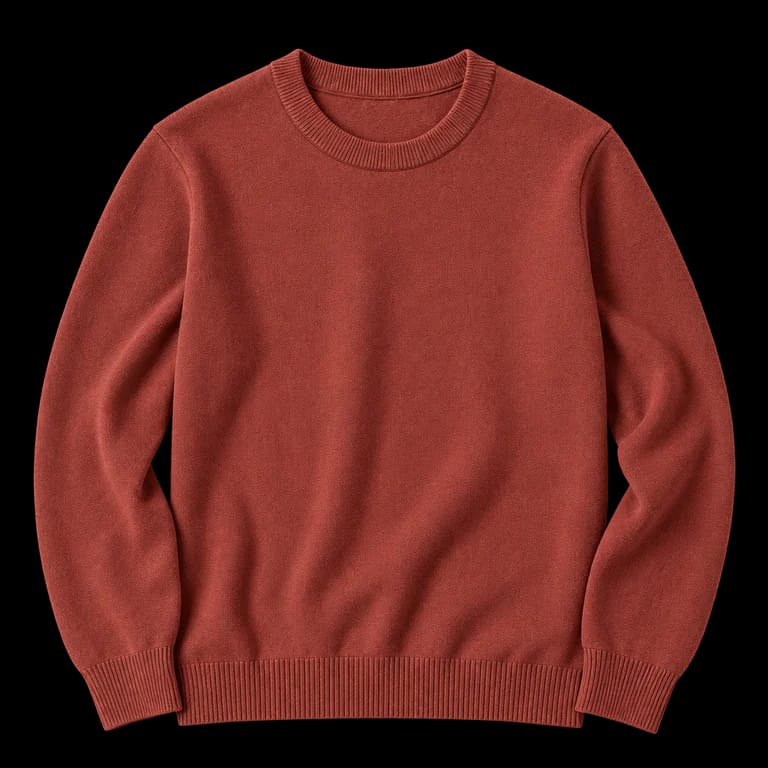
 Save
SaveA little order as you go
Favorite it, or file it.
Hover over Save to reveal its arrow. Choose Favorite or one of your own categories before the photo is imported. Your choice applies to every piece you keep from that photo.
Create categories in your wardrobe first. The regular Save button imports without a favorite or category choice.
From a photo to individual pieces
Keep the clothes you want.
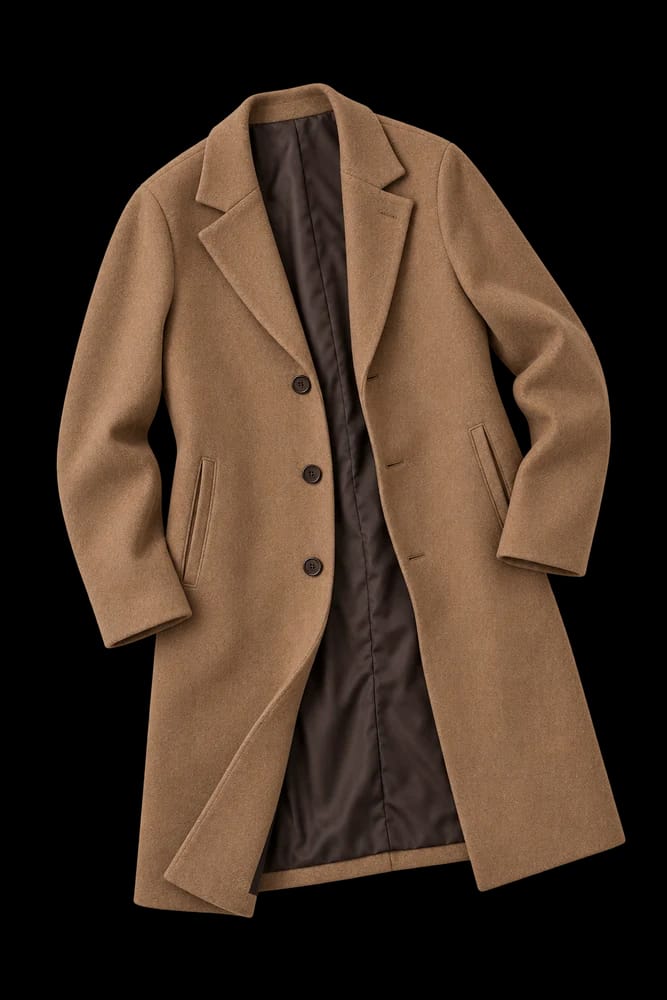
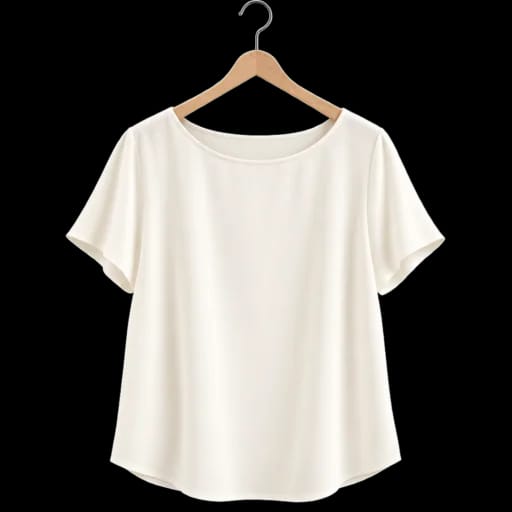
Outfello analyses your saved image and creates clean garment cut-outs. If it finds several pieces, the photo waits in the app's import tray for you to choose which ones to keep.
Follow progress in the extension popup or in Outfello. Once added, each piece is part of your wardrobe and can be used in outfits. If an import fails or no clothing is found, you can check its status in the app.
See inside the wardrobe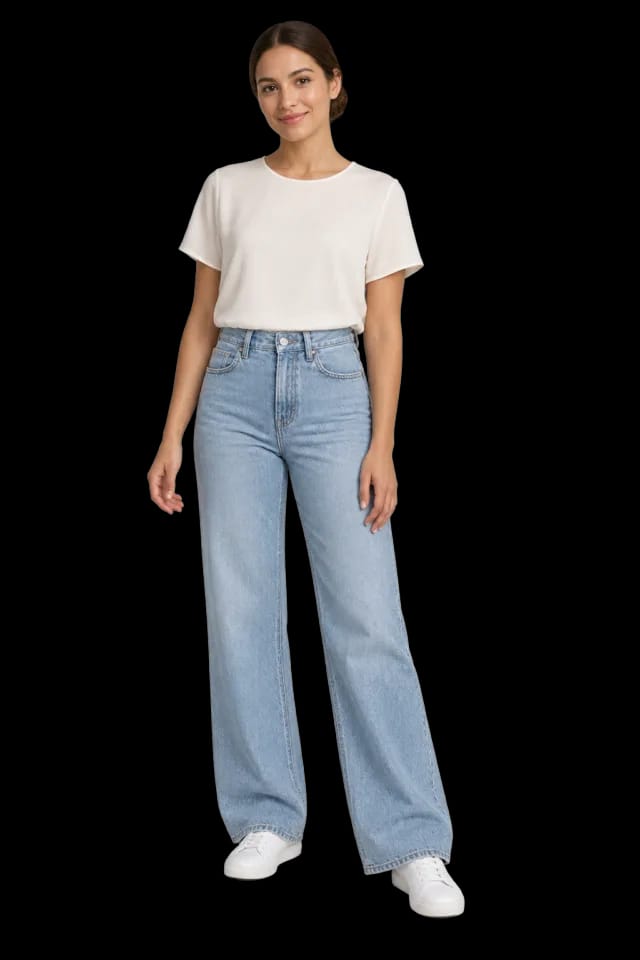
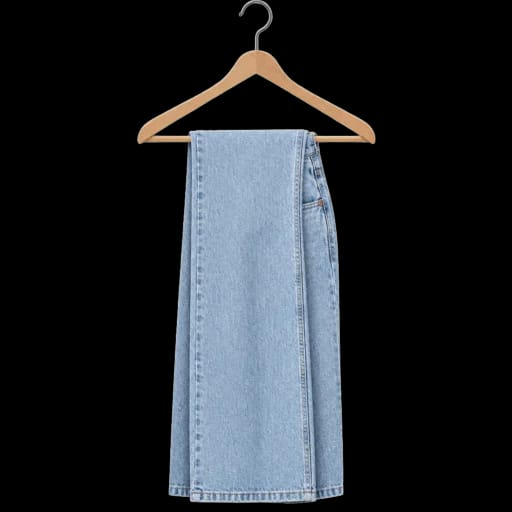
Getting started
Install. Connect. Save.
Connect Chrome to the same wardrobe you use in Outfello.
- 01
Add it to Chrome
The extension is not listed yet. When the listing is available, install Outfello for Chrome from the Chrome Web Store.
Chrome Web Store - 02
Connect your account
Sign in to Outfello in the same browser, open extension settings and select Connect this browser. The extension never sees your password.
Connect your browser - 03
Save a clothing photo
Hover over a photo and select Save. No button? Right-click the picture and choose Save image to Outfello.
Saves use your plan's import allowance and wardrobe capacity. Check what is included on the pricing page.
On your device, until you save
You choose what gets sent.
The hover detector runs on your device. Hovering does not upload images or page content to Outfello or an external AI service.
Saving uploads the picture you chose for AI-assisted clothing processing. Account-linked import diagnostics, including source domains and outcomes, are processed by PostHog to help improve reliability.
Read the extension privacy policyGood to know
Before your first save.
- Why is there no Save button?
- The image may not be recognised as clothing or the detector may be unable to load it. Use right-click to save it instead. Very small images cannot be imported.
- Do I need a paid account?
- No. You can connect a free Outfello account without a payment card. Saves still use your plan's import allowance, and your wardrobe has a capacity. The popup shows what remains.
- Where does it work?
- Use Google Chrome on a desktop or laptop to save pictures from shops, blogs and social feeds, including Instagram. The extension does not run on outfello.com itself. If an image cannot be downloaded, it may upload a locally cropped capture of the visible image instead.
- Can I turn it off or disconnect?
- Turn off the hover button in the popup, restrict site access in Chrome, or disconnect a browser from the popup or Outfello's extension settings. Saved clothing stays in your wardrobe.