 Outfello
Use case
A capsule wardrobe planner using your own clothes
Outfello works as a capsule wardrobe planner by letting you pick a small set of pieces from cut-outs of clothes you already own. The outfit builder stacks those pieces into looks with a colour filter on each slot. Any saved look can be rendered onto a full-body photo of you before you commit to it.
A capsule wardrobe is a small set of clothes that all work together, so fewer pieces give you more outfits. The hard part is not choosing a number; it is knowing in advance which pieces really combine. A capsule wardrobe planner earns its place by letting you test that on screen before you pack the rest away. Outfello does this with cut-outs of your own clothes, an outfit builder and optional try-on renders. This page covers the workflow and what Outfello does not do for capsules.
Start from what you own
A capsule built from clothes you already have is cheaper and more honest than one built from a shopping list. Import the pieces you are considering: drop in outfit photos, mirror selfies or photos of items laid flat, and every garment in the frame is detected and cut out on its own, named, categorised and colour-tagged.
Once they are in, filter the gallery by part and sort by colour. Seeing all your tops on the same neutral ground, grouped by colour, makes the shape of a capsule obvious quickly: which colours you already lean on, which ones sit alone, and which part is thin.
Tops sorted by colour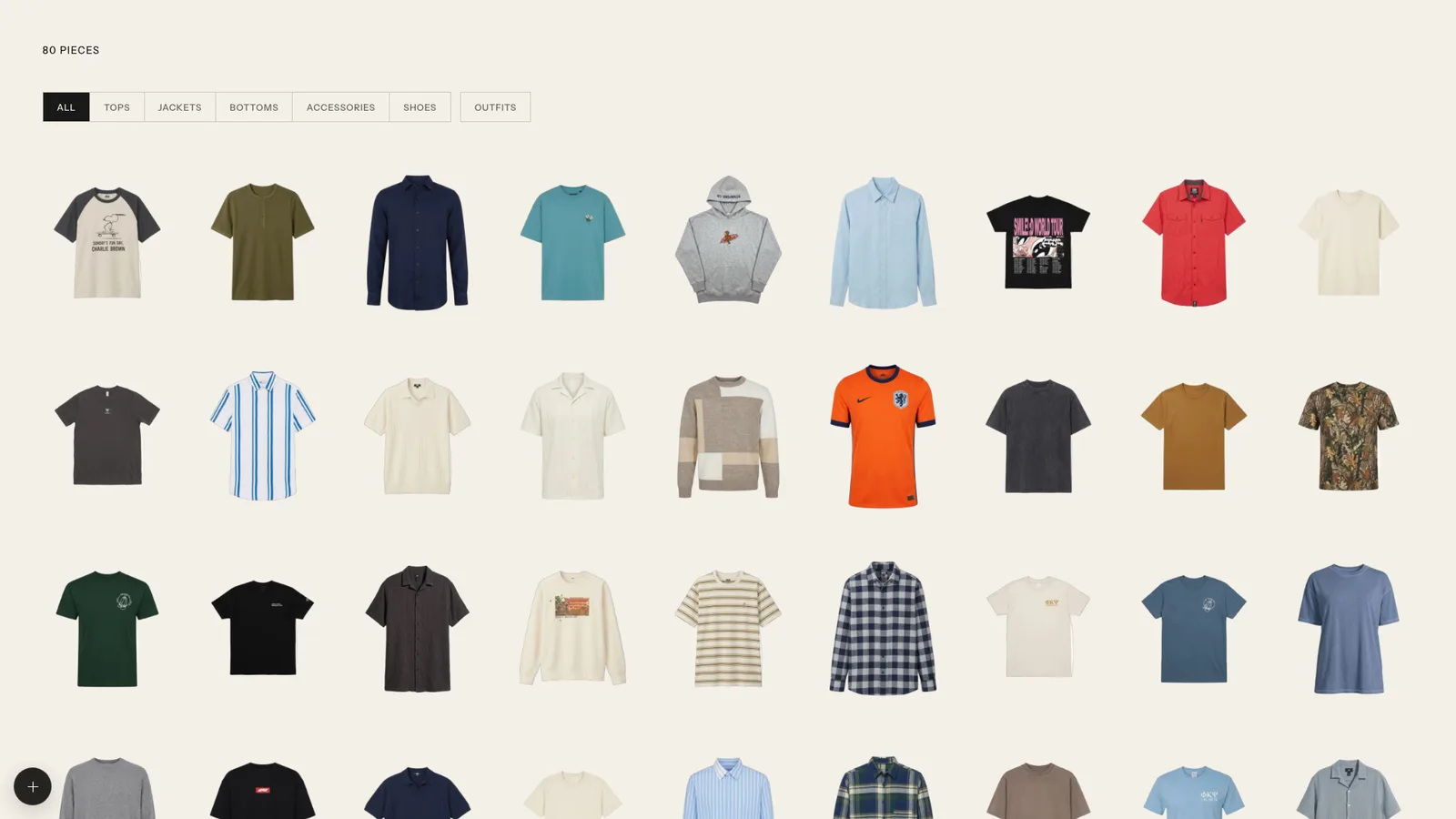
The capsule wardrobe guide covers how many pieces to aim for and how to split them across parts.
Choosing pieces as a capsule wardrobe planner
There is no dedicated capsule list in Outfello. The practical way to mark your choices is a detail tag, for example "capsule-autumn", added to each piece in the piece editor. The tag sits on the piece and you can change or remove it at any time; the gallery filters by part, not by tag, so the saved looks you build next are what bring the capsule together in one place.
A common starting point is a narrow palette: two or three neutrals plus one or two accent colours. The colour coordination basics guide explains tonal, analogous and neutral-with-an-accent schemes, the same schemes the paid daily planner builds around.
Testing combinations in the builder
This is where planning on screen pays off. Open the outfit builder, which has slots for jacket, top, bottoms, shoes and accessories, and work through your chosen pieces:
- Put one pair of bottoms in its slot.
- Cycle through every top in the capsule against it, using the colour filter on the top slot to stay inside your palette.
- Save each combination you would actually wear.
- Repeat with the next pair of bottoms.
Count the saved looks at the end. If a piece appears in only one of them, it is probably not pulling its weight. If one top appears in every look, the capsule may be leaning on it too hard.
Saved looks sit in the gallery grid alongside their pieces, so the finished capsule and its outfits stay visible together.
Judging combinations before you wear them
Cut-outs show colour and shape, but not proportion on your body. For the combinations you are unsure about, render the whole saved outfit head to toe onto one full-body reference photo of yourself. That uses one try-on from your plan's monthly allowance, and if generation fails the credit is returned. The virtual try-on page explains what the reference photo needs.
You do not need to render everything. Most people render the three or four looks where a length or a colour pairing is in doubt.
What it does not do
- No capsule feature as such. No capsule counter, no seasonal switching. Tags and saved looks are the workaround.
- No shopping suggestions. Outfello will not recommend what to buy to fill a gap in the capsule.
- No price tracking. There is no price field for working out what the capsule cost.
On paid plans, the daily planner can then suggest weather-appropriate outfits from your whole wardrobe; to keep it within the capsule, mark pieces outside it as unavailable. See the outfit planner page for how that works.
Limits
The number of pieces you can store, the monthly imports and the monthly try-ons depend on your plan; current figures are on the pricing page. A capsule is small by design, so the free plan is usually enough to plan one.
Questions
Frequently asked questions
- Is there a dedicated capsule feature in Outfello?
- No. There is no capsule list or capsule label as such. You build a capsule by choosing pieces in the gallery, testing them together in the outfit builder and saving the looks that work, which then sit together in the grid.
- How do I mark which pieces are in my capsule?
- Add a detail tag such as "capsule-autumn" to each chosen piece in the piece editor. The tag stays on the piece, though the gallery filters by part rather than by tag, so saved looks are the practical way to see the capsule together.
- Can I check whether the colours work together?
- Yes. Each slot in the outfit builder has a colour filter, and sorting the gallery by colour shows how your palette is spread. For a closer look, render a saved outfit onto your reference photo.
- How many try-ons will testing a capsule use?
- One per rendered outfit or piece. Most people render only the combinations they are unsure about. The monthly allowance for each plan is on the pricing page.
- Do I have to import my whole wardrobe first?
- No. You can import only the pieces you are considering for the capsule, which also keeps you within the free plan's capped wardrobe while you try the approach.
Related
Keep reading
- GuideHow to build a capsule wardrobe from what you ownHow to build a capsule wardrobe from clothes you already own: define the season, pick a neutral base, count by category, test outfits and buy to fill gaps last.
- GuideColour coordination basics using your own clothesColour coordination basics for your own clothes: neutral, tonal, analogous, neutral with one accent and complementary looks, tested by sorting by colour.
- Use caseAn outfit planner app that works from your own clothesUse Outfello as an outfit planner app: stack your own cut-out clothes into looks, save the ones that work and get weather-aware daily picks on paid plans.