 Outfello
Use case
A wardrobe inventory app that counts what you own
Outfello works as a wardrobe inventory app by turning photos of clothes into a gallery of cut-out pieces, each tagged with a category and colours. The gallery filters by tops, jackets, bottoms, shoes and accessories, and sorts by newest, name, colour or category. There is no automatic duplicate detection, so repeats are found by sorting on colour inside a category.
Most people underestimate how much they own by a wide margin, and overestimate how much of it they wear. A wardrobe inventory app fixes the first half of that by putting every piece in one place where it can be counted. Outfello builds the inventory from photos instead of manual rows: you drop in pictures, it finds the garments, and each one becomes an entry with a category and colours. This page covers how counting, sorting and duplicate-spotting work, and the limits you will meet.
Building the inventory from photos
You drag, drop or paste photos into the gallery: outfit shots, mirror selfies, product screenshots, or pieces laid flat on a bed. Every garment in the frame is detected, not just one, so a photo of a full outfit becomes four or five entries at once.
Each detected garment is cut out with its background removed, then named, categorised and colour-tagged automatically. Before anything lands in the gallery, it waits in a review tray where you can rename it, move it to another part, pick its colours off the cut-out, add detail tags such as "merino" or "cropped", or drop it. If an import fails, it retries without re-uploading the photo.
For an inventory, that review step is where accuracy comes from. A jumper filed under jackets, or a black shirt tagged as navy, will throw your counts off later.
Counting what you own
The gallery groups everything into five parts: tops, jackets, bottoms, shoes and accessories. Filtering to one part shows only those pieces, which is the quickest way to answer "how many pairs of shoes do I have?".
The gallery filtered to one part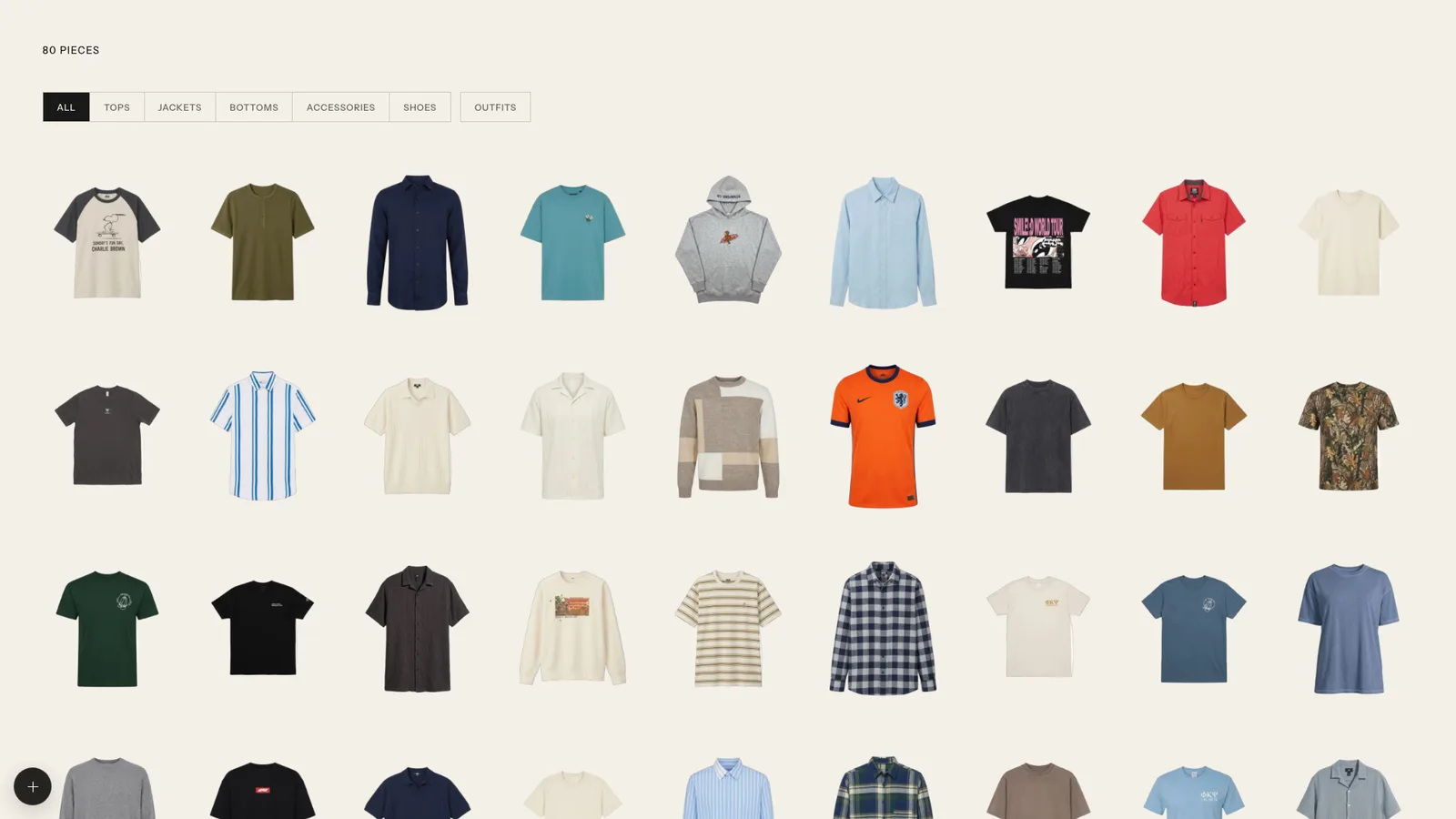
Because every piece sits on the same neutral ground as a cut-out tile, the grid is easy to scan. A wardrobe inventory app that shows pictures rather than text rows tends to surface things a list hides: the three nearly identical white T-shirts, or the fact that almost every top is a dark colour.
Detail tags and styles (casual, smart casual, sport, elegant, formal, outdoor, lounge, work) are stored on each piece and can be edited at any time in the piece editor. They are useful context when you review a part, though the gallery filters by part rather than by tag.
Finding duplicates
There is no automatic duplicate detection. The workaround is simple and works well in practice:
- Filter the gallery to one part, for example tops.
- Sort by colour.
- Scan the rows. Pieces of the same colour sit next to each other, so near-duplicates are hard to miss.
Repeat for each part. Whether two grey jumpers are duplicates or a sensible pair is your call; the grid just makes the question visible. The wardrobe audit checklist has questions for deciding what to keep once you have found them.
What the inventory does not track
- No text search. Filtering and sorting are the ways to find a piece.
- No price or purchase date. Cost and cost-per-wear have to be tracked elsewhere.
- No wear counter per item. Worn days are only recorded when you use the daily planner on a paid plan and mark an outfit as worn.
- No size or brand fields. Detail tags are free text, so you can add a brand or size as a tag if you want it on the piece.
If you are weighing a spreadsheet against an app, spreadsheet vs app for a wardrobe inventory compares what each is good at. Many people keep a small spreadsheet for prices alongside the visual inventory.
Storage caps
How many pieces the inventory can hold depends on your plan. The free plan has a capped wardrobe size and a small monthly import allowance, which is enough to catalogue a real section of your wardrobe and see whether the approach suits you. The paid plans raise stored pieces, monthly imports and monthly try-ons. Current limits for each plan are on the pricing page.
Changing plans, in either direction, never deletes anything you have stored.
Keeping it private and portable
The inventory is private to your account and nothing is listed publicly. It syncs across every device you sign in on, and a local copy keeps the gallery usable offline. You can download everything the account holds as a JSON file from account settings, which is useful if you want your own record outside the app.
For the broader catalogue features, see the digital closet page.
Questions
Frequently asked questions
- Does Outfello find duplicate clothes automatically?
- No. There is no automatic duplicate detection. Filter the gallery to one part and sort by colour, and near-identical pieces end up side by side.
- Can I search my inventory by name?
- There is no text search. You find pieces by filtering by part and sorting by newest, name, colour or category.
- Can I record what each item cost?
- No. There is no price or purchase-date field, so cost records and cost-per-wear need a separate note or spreadsheet.
- How many items can I store?
- It depends on the plan. The free plan has a capped wardrobe size and the paid plans raise the number of stored pieces; current limits are on the pricing page. Nothing is deleted if you change plans.
- Can I export my inventory?
- Yes. A full export of your account data is available as a JSON file from account settings.
Related
Keep reading
- GuideWardrobe inventory spreadsheet vs app: which to useA wardrobe inventory spreadsheet beats an app for custom fields like price and purchase date; an app wins on pictures and speed. How to choose, or use both.
- GuideA wardrobe audit checklist, part by partA wardrobe audit checklist for tops, jackets, bottoms, shoes and accessories: fit, condition, last worn, duplicates, gaps and care, with what to do about each.
- Use caseA digital closet app built from your outfit photosUse Outfello as a digital closet app: import clothes from outfit photos, get every piece cut out and colour-tagged, and filter your wardrobe by category.